Cozy Cat / Guides
Desktop pets and PC performance: a checklist
“A desktop pet that does not slow your PC” is a reasonable wish, but no animated app can promise zero impact on every computer. The useful question is whether the pet adds a noticeable cost to your own workload. You can answer that during a short trial, with the same windows open and one change at a time.
Define what would count as a problem
Before installing anything, choose two or three things you care about. They might be smooth typing, a quiet laptop fan, an uninterrupted video call, or keeping enough battery for a lecture. Write them down. A memory number alone is not a verdict: spare memory, graphics hardware, power settings and the other applications running all affect the experience.
Avoid comparing a review recorded on a gaming desktop with your thin laptop as if the results were interchangeable. Likewise, a download size is not the same thing as running memory usage. A 3D companion draws a scene; a two-dimensional mascot and a static wallpaper do different work. Compare the experience you want, not only the smallest advertised number.
Make a small before-and-after record
Open your usual work apps and wait for their initial loading to finish. On Windows, use Task Manager; on macOS, use Activity Monitor. Observe CPU, memory and, where available, graphics or energy use for a few minutes. Note the power mode, whether the laptop is plugged in, the number of monitors, and any ongoing update or video export. These details make the comparison meaningful when you repeat it.
Now open one desktop pet with one resident. Give startup and any downloads time to finish, then repeat the same typing, scrolling and window switching. Record an ordinary range rather than the single highest spike. Try a call only if calls are part of your routine. Close the pet normally and repeat the task once more. If the slowdown remains, it may come from something else that changed during the test.
Change one setting, then repeat
If the cost is noticeable, try the app’s lower-performance settings and fewer residents before making a purchase decision. Keep the workload and observation period similar. Check the visible pet, a hidden pet, and the restored pet separately: drawing, pausing and returning to the desktop are different states. Do not assume that shrinking an on-screen character necessarily reduces all of its internal work.
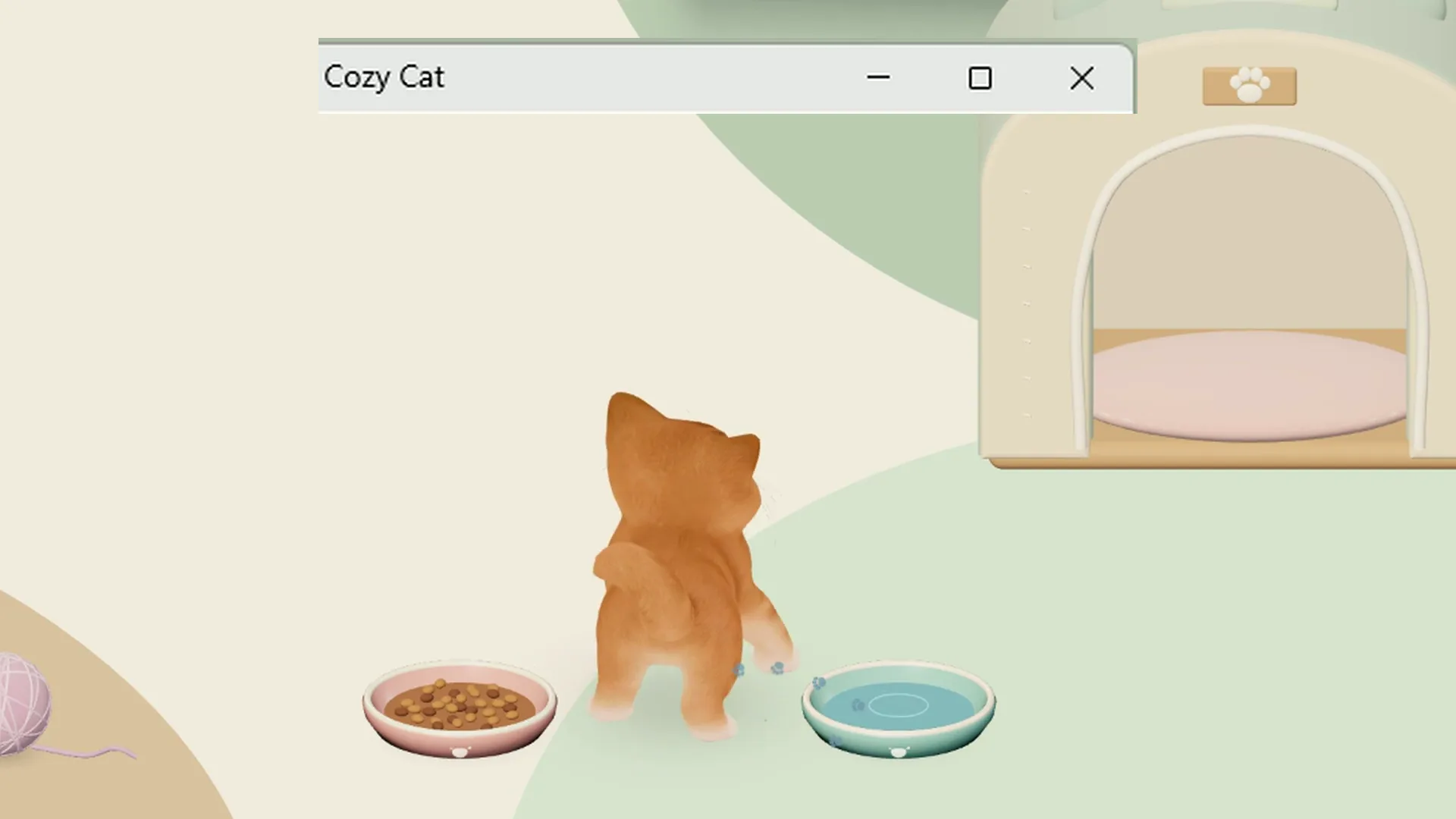
Cozy Cat offers performance, size and display choices, but we do not publish a universal CPU percentage or RAM guarantee. A home can have up to four resident cats, yet one cat is the clearest starting point for a test. If your laptop remains uncomfortable with the settings you prefer, a simpler companion or a static image may fit better. There is no reason to force an app into a workday where it gets in the way.
Measure distraction as carefully as memory
A pet can run smoothly and still interrupt you. Test the controls around the place where it rests. Can you select a spreadsheet cell, reach a video call button and switch windows without extra effort? Lower the sound and use focus or display settings before an important session. Practice hiding and restoring it, rather than discovering the control during a presentation.
Keep a short attention log: did you look over for a pleasant break, or abandon your task repeatedly? There is no objectively correct answer. Some people enjoy a responsive mascot while typing; others prefer an animal that mostly rests nearby. Try a full piece of ordinary work instead of judging only the first minute of animation. The most suitable companion is the one you still like after the novelty settles.
Compare alternatives on the same terms
Bongo Cat on Steam centers its appeal on typing and clicking with the cat, while Desktop Goose deliberately brings playful mischief to the desktop. WindowPet is another project worth checking against your platform and preferred character style. These are different designs, not entries in a measured performance ranking.
Cozy Cat focuses on a 3D cat you care for, play with and photograph. Its three-day trial does not automatically bill you; the base price is KRW 4,900, with optional G purchases. Check the final checkout amount and the current Windows/Mac release notes. Try the real desktop clips first, then use the setup guide if the style suits you. Keep your notes and your save backup, and make the decision after a normal day rather than a promotional clip.
Download for Windows · Download for Mac · Price and trial · FAQ