Cozy Cat / Guides
Desktop cat setup for Windows & Mac
A desktop cat should feel like company, not another setup project. Start by deciding whether you want a picture, a little character that reacts to your cursor, or a pet you can care for over time. This guide walks through the last option using Cozy Cat, with a few checks that also apply to other desktop companions.
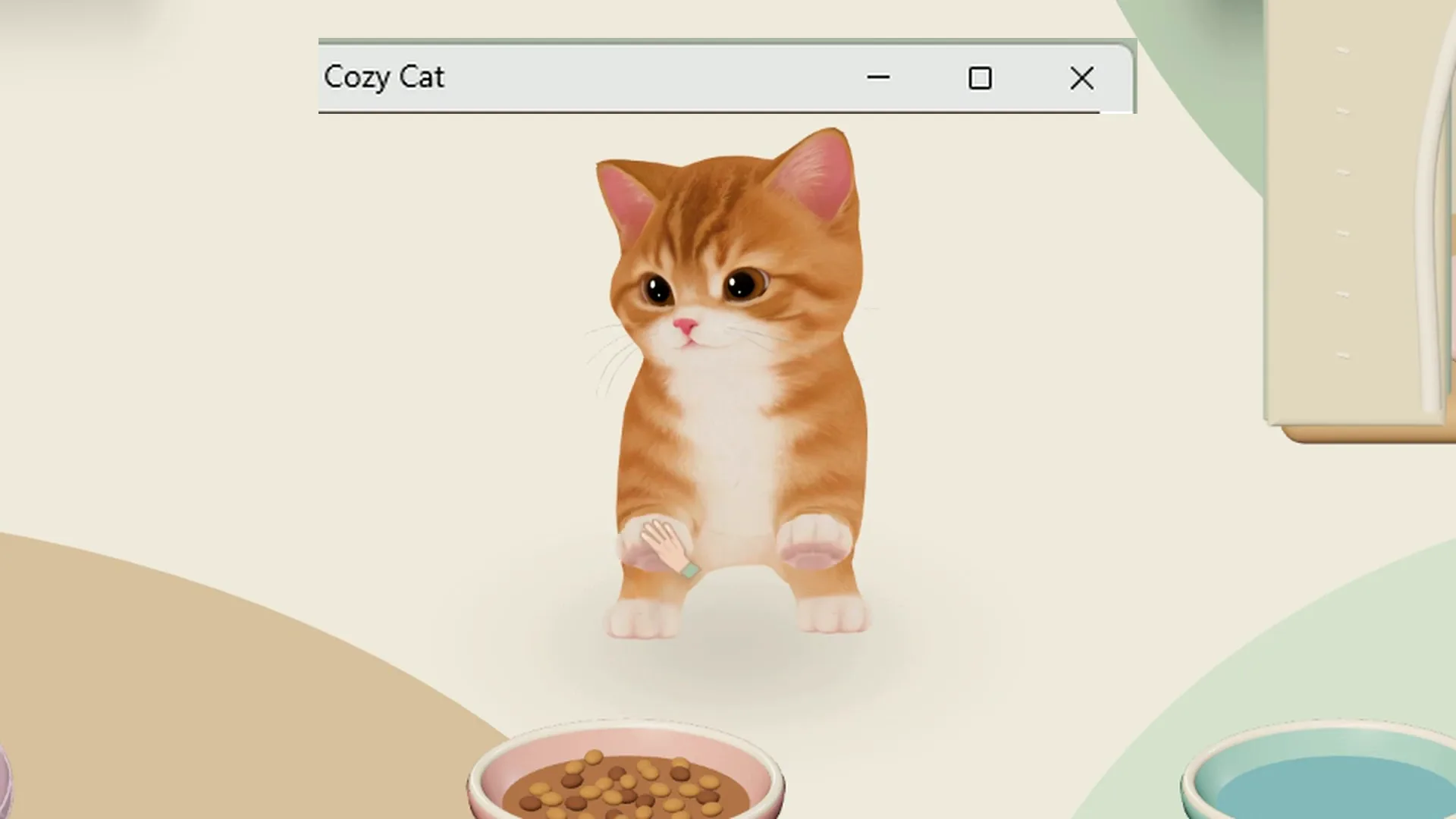
Check the computer before downloading
Cozy Cat supports 64-bit Windows 10 or 11, and Apple Silicon Macs running macOS 13 or later. An Intel Mac is not supported. On Windows, open Settings, then System and About to check the system type. On a Mac, choose About This Mac from the Apple menu and look for the chip and macOS version. A phone can show you this website and its videos, but it cannot run the desktop app.
The current public downloads differ: Windows is version 1.4.19 and Mac is version 1.4.18. The new behavior footage on the home page was recorded on Windows. Use the release notes to check what is available on your platform instead of expecting every scene to happen immediately after installation.
Download from the product site
Open the Cozy Cat home page on the computer you will use. Review the actual desktop footage and the system requirements, then choose the Windows or Mac download. Keep the installer from this official route rather than a reuploaded file from a video comment. Windows builds are signed by Seunghyun Jo using Certum; Mac builds are Apple notarized. A signature identifies the publisher, but it does not mean Windows can never display a reputation warning.
Follow the installer on Windows. On a supported Mac, open the disk image and move the app into Applications before opening it. If the operating system reports a problem, record the exact message and contact support. Do not disable the computer’s security protections as a generic fix, or download an unrelated package just because it uses the same cat picture.
Meet one cat and set up its space
Open the app and follow its first-run introduction. Windows 1.4.19 lets you begin as a guest; the current Mac release still asks you to log in. Choose a cat in the app, even if you already selected a favorite on the website: the website selection is a preview, not a completed adoption. Start with one resident so you can learn its movement and care controls without several animals competing for space.
Choose a quiet area away from buttons you click repeatedly. Adjust the available display mode, size and focus settings while your normal work window is open. Try selecting text, switching windows and reaching the taskbar or Dock. If you use two monitors, test the arrangement you actually work with. A layout that looks lovely on an empty desktop may cover a useful control when your editor or spreadsheet is maximized.
Use the trial as a real work session
The trial lasts three days and does not automatically charge you when it ends. The base licence is KRW 4,900 as displayed on the site; purchase is a separate action in the app, and final currency, taxes and total are shown at checkout. Optional G purchases are separate from the base licence. Levels, earned currency and individual item conditions still apply during the trial. Buying the base app is not a promise that every item is immediately unlocked.
Spend part of the first day with your ordinary workload: browser tabs, documents, a call, or the game you normally play. Try care and a little play during a break. Then leave the cat alone and see whether its presence suits your attention. The performance checklist explains how to compare the computer with and without the app, without relying on universal CPU or memory claims.
Keep the first week simple
Learn how to hide and restore the pet, lower its sound, and exit normally before adding more residents or furniture. A quick test before screen sharing is useful: share the intended window and check the preview so you know what colleagues will see. Basic care does not require microphone or screen permissions. Optional voice features are separate, and you can decide whether to use them after you understand the app.
Your cat stays saved on the computer after the trial ends. Keep a backup before moving computers or troubleshooting. The licence activates on up to three computers with one connected at a time; release the old connection when moving. Do not delete a save to solve a download problem. If something fails, note the app version, operating system and steps, then use the support address in the FAQ. A short description is more useful than repeated reinstalls.
Download for Windows · Download for Mac · Price and trial · FAQ